By: Team CS2103JAN2018-F09-B3 Since: Feb 2018 Licence: MIT
- 1. Introduction
- 2. How to Use this Guide
- 3. Quick Start
- 4. How to Read the Main Window
- 5. Features
- 5.1. View help
help|? - 5.2. Add a new coin account
add|a - 5.3. Add value to an account
buy|b[Since v1.4] - 5.4. Sell coin from an account
sell|s[Since v1.4] - 5.5. Delete an account
delete|d - 5.6. Clear all entries
clear|c - 5.7. Tag an account
tag|t - 5.8. List all accounts
list|l - 5.9. View details of an account
view|v[Since v1.5] - 5.10. Search through accounts
find|f[Since v1.4] - 5.11. Set up notifications
notify|n[Since v1.5rc] - 5.12. List added notifications
listnotifs|ln[Since v1.5] - 5.13. Change listing order
order|o[Since v1.5] - 5.14. List past commands
history|h - 5.15. Undo previous command
undo|z - 5.16. Redo undone command
redo|y - 5.17. Sync with price server
sync|sy[Since v1.5] - 5.18. Autocomplete
[Since v1.5] - 5.19. Exit the program :
exit|q - 5.20. Save data
- 5.1. View help
- 6. FAQ
- 7. Command Summary
- Appendix A: Glossary
1. Introduction
CoinBook is a desktop application that is made for users who prefer to work on a mouse-free environment where everything can be done through commands typed in with the keyboard. There is no need to click on visual components of the App to perform tasks. In other words, CoinBook offers a command line interface with minimal graphical user interface (GUI) dependence.
Coinbook allows you to store a portfolio of your cryptocurrency purchases as well as track the latest price trends and news, in addition to providing various tools to simplify and expedite your management process such as profit calculation.
This guide will help you set up CoinBook, as well as introduce its various features.
2. How to Use this Guide
Read this document to get up and running fast with CoinBook. The first thing you need to do is to get it set up, by reading the Quick Start section. Once you have CoinBook running, get to know the things you can do with it by reading the Features section. If you prefer to just have a quick overview of the available commands, skip to the Command Summary section.
You may find the tips below helpful in using this guide.
- Boxes
-
There are various types of boxes that provide extra information:
|
This icon indicates tips for usage and points out little details you may have missed. |
|
This icon marks additional noteworthy information provided for reference. |
|
This icon warns you of things you should watch out for. Make sure to keep these in mind! |
- Markup
-
Text with special meaning look different. Here are the various types:
-
Commands, filenames, and other miscellaneous keywords are
monospaced for emphasis -
Glossary terms have a dotted underline
-
Keyboard keys are marked like this
-
Q means to press the
Qkey -
Ctrl+Q means to hold down the
Ctrlkey and then press theQkey
-
-
Links are marked blue with underline
-
- Finding Information
-
Check the table of contents and click on the desired topic. If you wish to search for a particular keyword, press Ctrl+F and type into the opened find dialog.
3. Quick Start
Follow the steps below to begin using CoinBook :
-
Ensure you have Java version
1.8.0_60or later installed in your computer.Having any Java 8 version is not enough.
This app will not work with earlier versions of Java 8.
You can obtain the latest version here (Download JRE). -
Download the latest
coinbook.jarhere. -
Copy the file to the folder you want to use as the home folder for your CoinBook.
-
Double-click the file to start the app. The GUI should appear in a few seconds (Fig. 1).
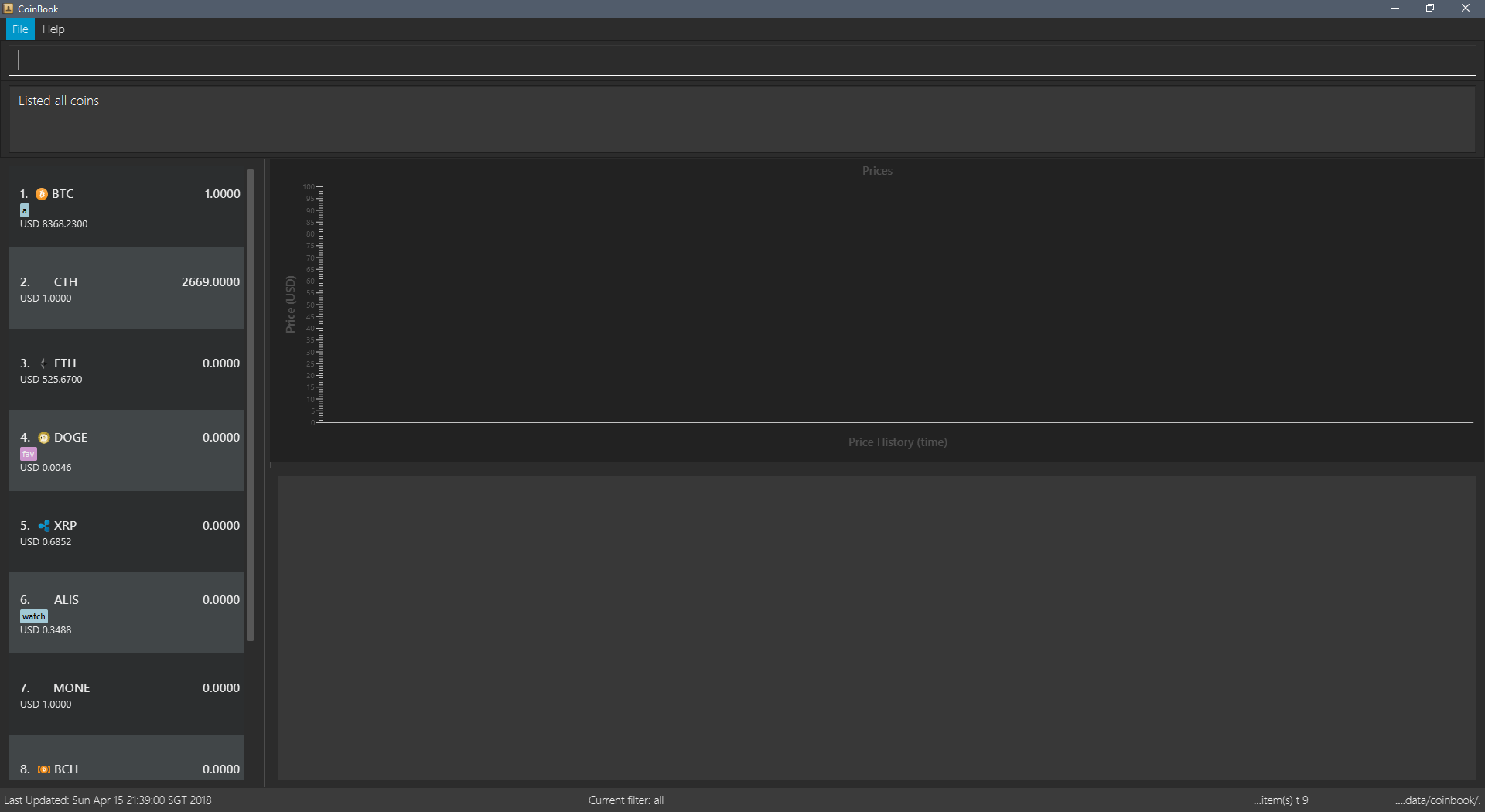 Figure 1. Startup Window
-
Type your commands in the command box and press Enter to execute them.
e.g. typinghelpand pressing Enter will open the help window.
4. How to Read the Main Window
The figure below (Fig. 2) describes each section of the user interface.
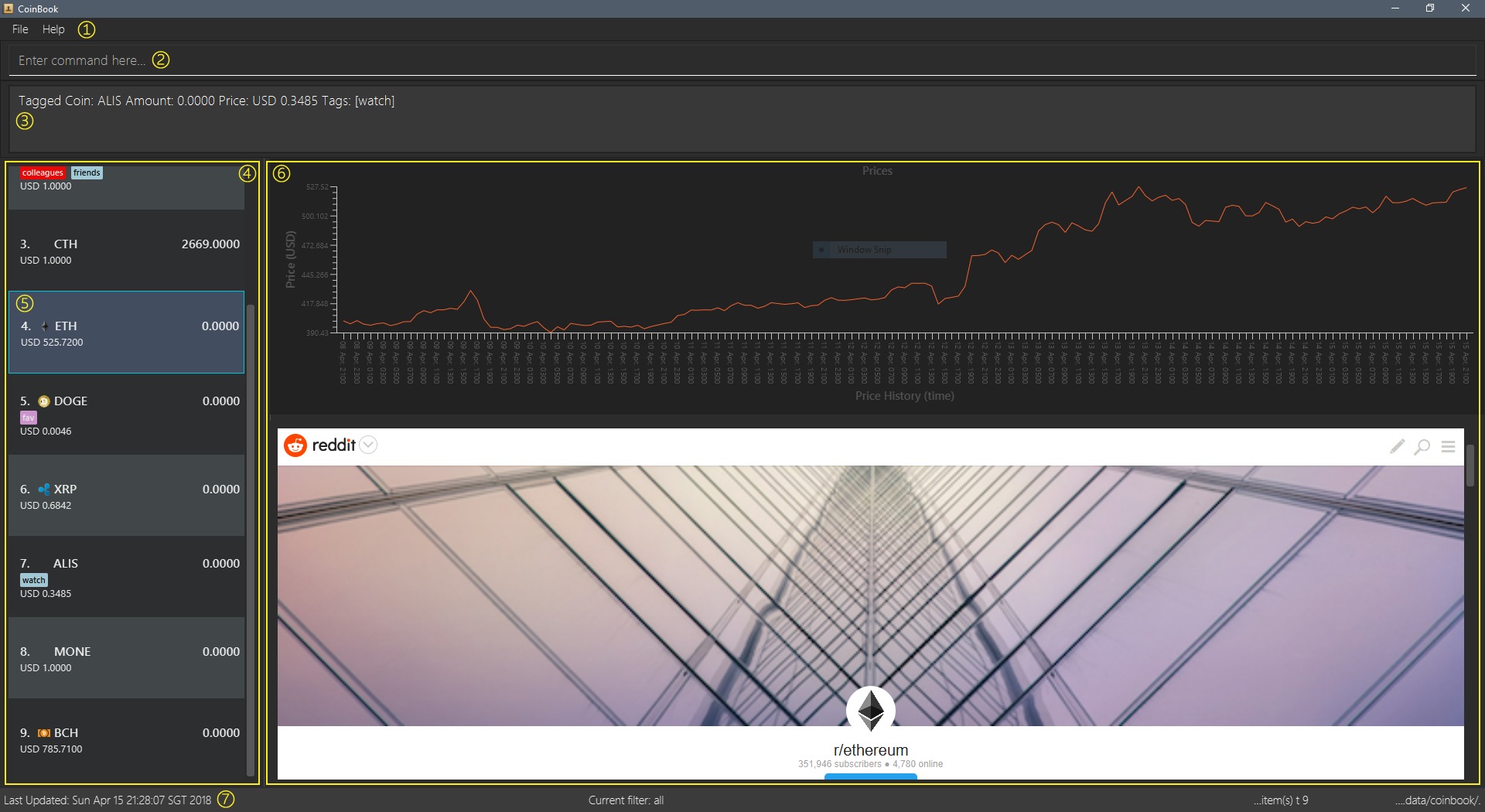
| 1 | File Menu - Contains the buttons to exit and bring up the Help window. |
| 2 | Command Box - Contains the text box for you to type your commands into. |
| 3 | Result Display Pane - Contains the text responses of the program. The responses usually either acknowledge commands or notify that an error has occurred. |
| 4 | Listing Pane - Contains the list of coin accounts that you currently own. |
| 5 | Coin Account - Contains information on each coin. From top to bottom, left to right:
|
| 6 | Detail Window - Shows the price chart and subreddit, if available, that is associated with the coin of your choice. |
| 7 | Status Bar - Shows various information about the state of the App. From left to right:
|
5. Features
CoinBook allows you to manage your coin accounts easily through the use of commands. All you need to do is type in the command, followed by its required or optional parameters, then press Enter to execute it.
5.2. Add a new coin account add | a
add c/CODE [t/TAG]...
|
Must be alphabets only
|
||
|
Must be alphanumeric, i.e. only alphabets and digits are allowed |
Adds a new coin account into the list, with the given trading code, and the given tags.
You will be notified in the result pane if the added coin is not known to have a subreddit, for the viewing of news updates. See view command.
add c/BTC
Adds the coin with the code BTC to CoinBook.
5.3. Add value to an account buy | b [Since v1.4]
buy TARGET a/AMOUNT
|
Must be a positive number |
Adds the given AMOUNT, in coin units, into the specified coin account.
buy BTC a/0.5
Adds 0.5 to the amount held in the BTC account.
5.4. Sell coin from an account sell | s [Since v1.4]
sell TARGET a/AMOUNT
|
Must be a positive number
|
Removes the given AMOUNT from the specified coin account.
sell BTC a/0.5
Subtracts 0.5 from the amount held in the BTC account.
5.5. Delete an account delete | d
delete TARGET
Deletes the specified coin account.
delete 3
The third entry in the current listing is removed.
| Coin accounts are not automatically removed when their value goes to 0 to allow later reuse, or even for archival or record purposes. You need to remove them explicitly with this command. |
5.6. Clear all entries clear | c
clear
Resets all data in CoinBook.
|
This command can be reversed with |
5.7. Tag an account tag | t
tag TARGET t/TAG...
|
Must be alphanumeric, i.e. only alphabets and digits are allowed |
Sets the specified coin’s tags to the given tags.
tag 1 t/fav
The first entry in the list is tagged with the fav tag.
tag 3 t/
The third entry in the list has all of its tags removed.
tag BTC t/fav t/watch
The BTC account is tagged with fav and watch.
| A coin account can have any number of tags (including 0) |
5.8. List all accounts list | l
list
Updates the listing to show all coin accounts in CoinBook.
5.9. View details of an account view | v [Since v1.5]
view TARGET
Opens up the detail window for the account specified. The detail window includes information such as:
-
Total amount in dollars spent in purchasing this coin
-
Amount earned from selling this coin
-
Possible profit if all coin in this account is sold at the current price
-
Chart of the price history
-
Subreddit of this coin, if there is one
-
etc… [More analytics coming in v2.0]
view BTC
See details for the BTC account
view 2
See details for the 2nd account in the current listing
5.10. Search through accounts find | f [Since v1.4]
find CONDITION
|
Must follow the format listed below |
Updates the listing to show only coin accounts whose details satisfy the given condition.
find c/BT
Finds accounts with BT in their code
find t/fav
Finds accounts with the fav tag
find (p/>500 AND t/fav) OR h/<20
Finds accounts either with current price more than $500 and tagged fav, or with less than 20 coins left
5.11. Set up notifications notify | n [Since v1.5rc]
notify CONDITION
Sets a condition that triggers a popup notification whenever the condition matches the new data for a coin after a price update. The condition query mostly follows the same format as that used in find, with the following additional options:
You can click on the notification pop-up to jump quickly to the coin account that triggered it.
notify h/>0
Notify when the amount held in an account is more than 0 after the update. This always triggers and hence is useless on its own, but can be combined with other conditions to restrict notifications to a smaller set of accounts
notify c/BTC w/=50
Notify when the amount worth in dollars of the BTC account is $50
notify w/+>1000 c/ETH
Notify when the amount worth in dollars of the ETH account rises by more than $1000
5.12. List added notifications listnotifs | ln [Since v1.5]
listnotifs
Opens the notification list window.
5.13. Change listing order order | o [Since v1.5]
order {a,z}
Orders the coin listing in lexicographical order or reverse lexicographical order.
Put a after the command word to sort it in lexicographical order, and z to sort in reverse lexicographical order. The listing is sorted by the leftmost entered option first, then equal values are sorted by the next one, and so on.
The default order is lexicographical order of the coin names (i.e., option a).
order a
Sort the listing in lexicographical order (default option, whether "a" is added after the command word or not).
order z
Sort the listing in reverse lexicographical order.
|
This command can be reversed with |
5.14. List past commands history | h
history
Lists all the commands that you have entered previously, in reverse chronological order.
|
Pressing the UP and DOWN arrow keys will also display the previous and next input respectively in the command box. |
5.15. Undo previous command undo | z
undo
Restores the data to the state before the previous undoable command was executed.
|
Undoable commands: Commands that modify the data ( |
buy BTC a/10 (1)
list
undo (1)
This reverses the buy BTC a/10 command.
view 1
list
undo
The undo command fails as there are no undoable commands executed previously.
sell BTC a/10 (2)
clear (1)
undo (1)
undo (2)
The first undo reverses the clear command, the second reverses the sell BTC a/10 command.
5.16. Redo undone command redo | y
redo
Reverses the most recent undo command.
buy BTC a/10 (1)
undo (1)(2)
redo (2)
| 1 | Reverses the buy BTC a/10 command, and |
| 2 | Reapplies it |
The result is as if only the first line was executed.
list
redo
The command fails as there are no undo commands executed previously.
sell BTC a/10 (2)
clear (1)
undo (1)(4)
undo (2)(3)
redo (3)
redo (4)
This sequence of commands:
| 1 | Reverses the clear command |
| 2 | Reverses the sell BTC a/10 command |
| 3 | Reapplies the sell BTC a/10 command, and finally |
| 4 | Reapplies the clear command |
The result is as if only the first two lines were executed. Notice how the order of redoing is opposite from the undoing.
5.17. Sync with price server sync | sy [Since v1.5]
sync
Obtains the latest price data to update price metrics of all owned coins.
|
You may notice some coins disappearing from the list view after syncing. This is most likely because the relevant coins no longer satisfy the currently applied list filter. Run the list command if you wish to see all coins.
|
5.18. Autocomplete [Since v1.5]
Pressing any key will auto-suggest the field with all possible matching inputs.
Pressing the UP and DOWN arrow keys will allow navigation of the input suggestions.
Once the desired command is selected as indicated by light grey highlight, pressing the ENTER key will input the command into the command box.
5.19. Exit the program : exit | q
exit
Exits the program.
After exiting the program, any changes made in the session will not be undoable with the undo command in the next session.
|
5.20. Save data
CoinBook data is saved in the hard disk automatically after any command that changes the data.
There is no need to save manually.
6. FAQ
Q: How do I transfer my data to another computer?
A: Install the app in the other computer and overwrite the empty data file it creates with the file that contains the data of your previous CoinBook folder (default location: data/).
7. Command Summary
| Command | Format | Description |
|---|---|---|
Add |
|
Adds a coin account with the specified trading CODE. |
Buy |
|
Adds AMOUNT of coin to the targeted account. |
Clear |
|
Deletes all coin accounts. |
Delete |
|
Deletes targeted coin account. |
Exit |
|
Exits the program. |
Find |
|
Finds all coin accounts that fit the CONDITION. |
Help |
|
Displays the help page. |
History |
|
Shows the user a history of previously input commands. |
List |
|
Lists all coin accounts. |
Notify |
|
Sets a notification for when the CONDITION has been met. |
Order |
|
Sorts the coin accounts based on their code. |
Redo |
|
Reapplies the previously un-done command. |
Sell |
|
Subtracts AMOUNT of coin from the targeted account. |
Sync |
|
Fetches data from online sources to update the prices. |
Tag |
|
Tags the targeted account with TAG name. |
Undo |
|
Reverts the effect of the previous undo-able command. |
View |
|
Views information about the targeted account. |